Friday, July 10, 2020

Installing VCSA 6.7 on VMware Workstation


A quick guide to set up my own VCSA lab for testing.


Download the VCSA image from the following link. You need your own login obviously.

https://my.vmware.com/web/vmware/downloads/details?downloadGroup=VC67U1&productId=742&rPId=27401


Mount the iso


From VMware Workstation. Open the OVF under the ISO image - vcsa directory


Accept the license and move on. Note: it doesn't give any option to choose the sizing and how the network is being set up.


When it is completed, it will create the following disk layouts.


Click Power on this virtual machine.,


If you are getting this error or it simply would not start, then you can modify the vmx file


2020-07-10T11:29:59.173-06:00| vmx| I125: [msg.vmciWin32.noVersion] Could not get vmci driver version: The handle is invalid.
2020-07-10T11:29:59.173-06:00| vmx| I125: [msg.vmciWin32.badDriver] You have an incorrect version of driver 'vmci.sys'. Try reinstalling VMware Workstation.
2020-07-10T11:29:59.173-06:00| vmx| I125: [msg.moduletable.powerOnFailed] Module 'DevicePowerOn' power on failed.
2020-07-10T11:29:59.173-06:00| vmx| I125: [msg.vmx.poweron.failed] Failed to start the virtual machine.


Search for the following and change it to FALSE. My failed Workstation is 12.5.5 build-5234757. Version 12.7 has no such issue.

vmci0.present = "TRUE"


Important steps.
I am not sure what's going on with the version of VCSA that the password has to change it the first time in the terminal then change it again in the setup screen later to get it to work. This may have something to do that, that it no longer prompting users the type of set up in the early stage of the installation.


Do it before the DCUI starts.


Notice, it says Root password is not set. You will need to set it again by hitting F2. Make sure it is the same as the new password above. Also, the HTTP://photon-machine does not provide port number 5480 as yet.


Type in the password as before.


Now that it will provide the port number of 5480 once the new password is set.


Open a browser and type in the https://ip-address:5480

Almost done. Continue with Set up.


Type in the password that has been changed twice earlier.


Click Next.


Continue with SSH enabled.


The access is under this link
https://photon-machine:443


That's it.


Accessing vCenter Appliance Management

root

Accessing to vSphere Web Client
administrator@vsphere.local


One interesting thing with the database size. The Backup UI is showing different size than querying the database directly.


Note: 

This installation will likely end up with IPv4 as DHCP. After some reboots, the IP might changed that resulting in the SSO going out of synch with the new IP address. The SSO status will be unknown. In that case, the vSphere Web Client will not be accessible until both vSphere Web Client and the vCenter Management IPs the same. This may have to do with all the roles and sso setting defined on the IP address it first setup.

Error will look like this "500 sso error failed to connect to vmware lookup service - <IP Address>/lookupservice/sdk" or some bogus web server errors.

With that, I would recommend going into the vCenter Console and change it to static by retyping the same IP address.

/opt/vmware/share/vami/vami_config_net

<0> remember the IP address
<6> change the IP address for IPv4 to static

Friday, November 22, 2019

VMware Workstation Exception 0x0000005 (access violation) has occurred.


The exception basically means the VM directory has been moved from one place to another while it was in Suspended mode.


The state of the VM before resuming. In multiple places, it has an indication that the VM is in Suspended mode.


Here is how to get it back to working state. Simple go over to the VM's directory and remove the suspended file. Whatever recorded in there including the previous location, has been altered/changed. It doesn't know what to do with the new vmss file. Delete the file and start as usual. The VM should not sure of any signs of Suspended or resume operation. It will run as a fresh start. You will lose all the works before the suspend that took place. But at least, the VM is accessible again.


This is the expected behavior. VMware Workstation should really provide better hints than just the exception codes and logs isn't any help for self-diagnostic.

Tuesday, December 25, 2018

VCSA root partition filled up.


Symptoms vCenter Server Appliance root partition filled up 100%.


  1. Unable to log in through ssh with root and triggering "Access Denied" message.
  2. Unable to start vPostgresql likely due to unable to generate a single bit of write to postgresql.log and etc.
  3. Unable to start vCenter Appliance (obviously)
  4. In an attempt to change the root pass will exhibit the following errors. The following error of " passwd: Authentication token manipulation error." typically means filesystem is read-only. This might explain it that, since the / is filled up 100%, not a single bit can be written to it.


To solve this issue, simply login from the appliance console through GRUB.

https://kb.vmware.com/s/article/2147144?lang=en_US

Instead of at Step # 7, you can navigate around the system and look for big logs (du -h or ls -las) that might have caused the "/" to fill up 100% and remove it. 


If all the filesystem growth is legitimate then the only option is to grow the / filesystem.


Thursday, September 6, 2018

mssql: Could not open a connection to SQL Server (Microsoft SQL Server, Error: 2)


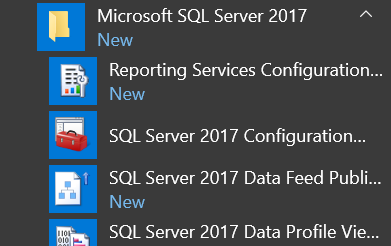
Unable to connect to SQL Server database initial Win 2017 boot up. The error message looks like network related but I was able to connect to it locally either. It turned out that the Microsoft SQL Server Database Engine was not running even though, it has been set to Auto Start.


Get to SQL Server 2017 Configuration


After starting the SQL Server, I was able to connect.

Moving the SQL Server to SSD drive enable the SQL Server engine to start upon Windows Server starting up. My guess is, this may be due to slow disk causing the SQL Server engine to timeout on trying to start the service when Windows first starting up.


Wednesday, September 5, 2018

Workstation: Failed to allocate main memory


This has to do with where the VMDK reside not mounted. Mounted the filesystem it should resolve the following issue. The error message is a little misleading where it is referring to 'paging' and 'mainmem'.


Wednesday, August 22, 2018

RocksDB: ldb scan

Make sure the database data is Block type, use hex

If database have sst file type the use RocksDB sst_dump too.
"Failed: Invalid argument: leveldb.BytewiseComparator: does not match existing comparator RocksKeyComparator"


How to run RocksDB ldb tool

ldb tools reside in rocksdb directory. The location can be anywhere where the user built the rocksdb into. I built mine from home directory. 
rocks@ubuntu:~/rocksdb$ pwd; ls -las ldb
/home/rocks/rocksdb
110692 -rwxrwxr-x 1 rocks rocks 113342424 Mar 15 15:44 ldb
 
./ldb --db=/home/rocks/builds/p2-blockchain/release/Blockchain/EthereumBlockchain/scripts/dbtest2 scan
Step 2b: If the data type is Block data type use '--hex' flag.
./ldb --db=/home/rocks/builds/p2-blockchain/release/Blockchain/EthereumBlockchain/scripts/dbtest2 scan --hex |less
./ldb --db=/home/rocks/builds/p2-blockchain/release/Blockchain/EthereumBlockchain/scripts/dbtest2 scan --hex > output.dat


rocks@ubuntu:~/rocksdb$ ./ldb --db=/home/rocks/builds/p2-blockchain/relwithdebug/Blockchain/EthereumBlockchain/scripts/dbtest1 scan --hex
....
 

0x02000000F000000000000000 : 0x01000A0021002B0001000422FDF068A5EF85F7C9C532E66D0EB76BF74D8C81CDD9ACE1AEC6C63CB6B5E5BF31
0x02000000F100000000000000 : 0x02001200150027002000470015005C002000014BD5F0EE173C81D42765154865EE69361B6AD189000000000000000000000000000000000000000000000025E46D8ED84BE7C00001FD7C9117BBEB649D9B37B3D3C9917F7C12F526B30000000000000000000000000000000000000000000000004563918244F40000
0x02000000F200000000000000 : 0x01000A0021002B00010004C3440C47368CA813312FDD0763931A0D300DF00DEAA5D9118FEDCB2E945A1C6F31
0x02000000F300000000000000 : 0x02001200150027002000470015005C0020000163B0495E672B1382B1AC7968B02E3B4234FE59DD000000000000000000000000000000000000000000000000001DD7C1681D80000132BE343B94F860124DC4FEE278FDCBD38C102D8800000000000000000000000000000000000000000000042776C17D8292FEC000
0x02000000F400000000000000 : 0x01000A0021002B00010004CE71039FAC556DB796A841D764C6B1E6BD47DF04D2DE82369F9904560019F87A31
0x02000000F500000000000000 : 0x02001200150027002000470015005C00200001A89AC93B23370472DAAC337E9AFDF642543F3E57FFFFFFFFFFFFFFFFFFFFFFFFFFFFFFFFFFFFFFFFFFFFFFF412E2FD9C261000000192C27672FE65E002159EC2597FCF8897ADBF5B290000000000000000000000000000000000000000000000008AC7230489E80000
0x02000000F600000000000000 : 0x01000A0021002B0001000414574CB3DF1F81C9EB82D4DDF98FE485908D882C597B4055E7C8052FDFC75F4B31
0x02000000F700000000000000 : 0x02001200150027002000470015005C002000010CDA12BF72D461BBC479EB92E6491D057E6B5AD1FFFFFFFFFFFFFFFFFFFFFFFFFFFFFFFFFFFFFFFFFFFFFFAEAEE6E67FE2CD0000018DDA5E016E674683241BF671CCED51E7239EA2BC000000000000000000000000000000000000000000000000002386F26FC10000
0x02000000F800000000000000 : 0x01000A0021002B0001000411106C9294A9ACC466053AEF89035726C5F843E5E162AA90DFC3B6C2912884AF31
0x02000000F900000000000000 : 0x02001200150027002000470015005C00200001CCF7110D1BD9A74BFD1D7D7D2D9D55607E7B837DFFFFFFFFFFFFFFFFFFFFFFFFFFFFFFFFFFFFFFFFFFFFFFED67EB354AB9040000013DFE98A9CEBAA3C6901E643B50271D3C1A3E4C170000000000000000000000000000000000000000000000129814CAB546FC0000
0x02000000FA00000000000000 : 0x01000A0021002B0001000442BF6EBAAD788AD325B7A9AF4942BA2DC6E7E4EE9C1AEFAE2F38A790BD7E81E431
0x02000000FB00000000000000 : 0x02001200150027002000470015005C00200001F9D5C39F787349C66B088010FD99A29BD5A38989FFFFFFFFFFFFFFFFFFFFFFFFFFFFFFFFFFFFFFFFFFFFFFFFD65DDBE509D40000013F5CD2B711EAF2131237650C2EB03732F1BEA2CD00000000000000000000000000000000000000000000000029A2241AF62C0000
0x02000000FC00000000000000 : 0x01000A0021002B00010004CB33882AC0004112E64C730BBD1C11B9615260B6C2C5E4075D667FB196E8ECF131
0x02000000FD00000000000000 : 0x01000A0021002B000100041B7F313C3AD211C32A43B3285B5A7DCF9E8C4BA45546CDEA19CED8B36AABF56731
0x02000000FE00000000000000 : 0x01000A0021002B00010004E0EE1DA6806A0D11A72063884319BD2FC75C4C0259CE054A8E272EC361C2D69431
0x02000000FF00000000000000 : 0x01000A0021002B000100042668C29191A3789B8E271B8063A122D12DFC845C29E739C958AB212CF43A34D231


....